









Take an appliance and air-conditioning service with two technicians in the field and one person in the office. In the morning the technicians pick up paper work orders and drive off to customers. At the customer’s they write down what was wrong and which part they replaced, while photos of the fault stay on their own phones. They remember the hours or estimate them. In the afternoon the office types everything into the computer, hunts for a serial number on a crumpled sheet and calls the technician to ask which part he actually fitted.
This is an illustrative example many service companies will recognise. Below is how you organise that work in eNalog so the technician completes the work order on a phone at the customer’s and the office sees everything at once.
What was getting in the way
- ✓Everything was written twice: first on paper, then into the computer.
- ✓Serial numbers and warranty details were missing or mistyped.
- ✓Photos of faults stayed on private phones, so they were not there when a complaint came in.
- ✓Work time was estimated from memory, and parts used were taken off stock late.

The office prepares the work order
When the industry is set to device servicing, the subject of a work order is a device: manufacturer, model, serial number and warranty. In Company settings → General → Form the administrator can make fields mandatory, for example the serial number, so nobody forgets it.
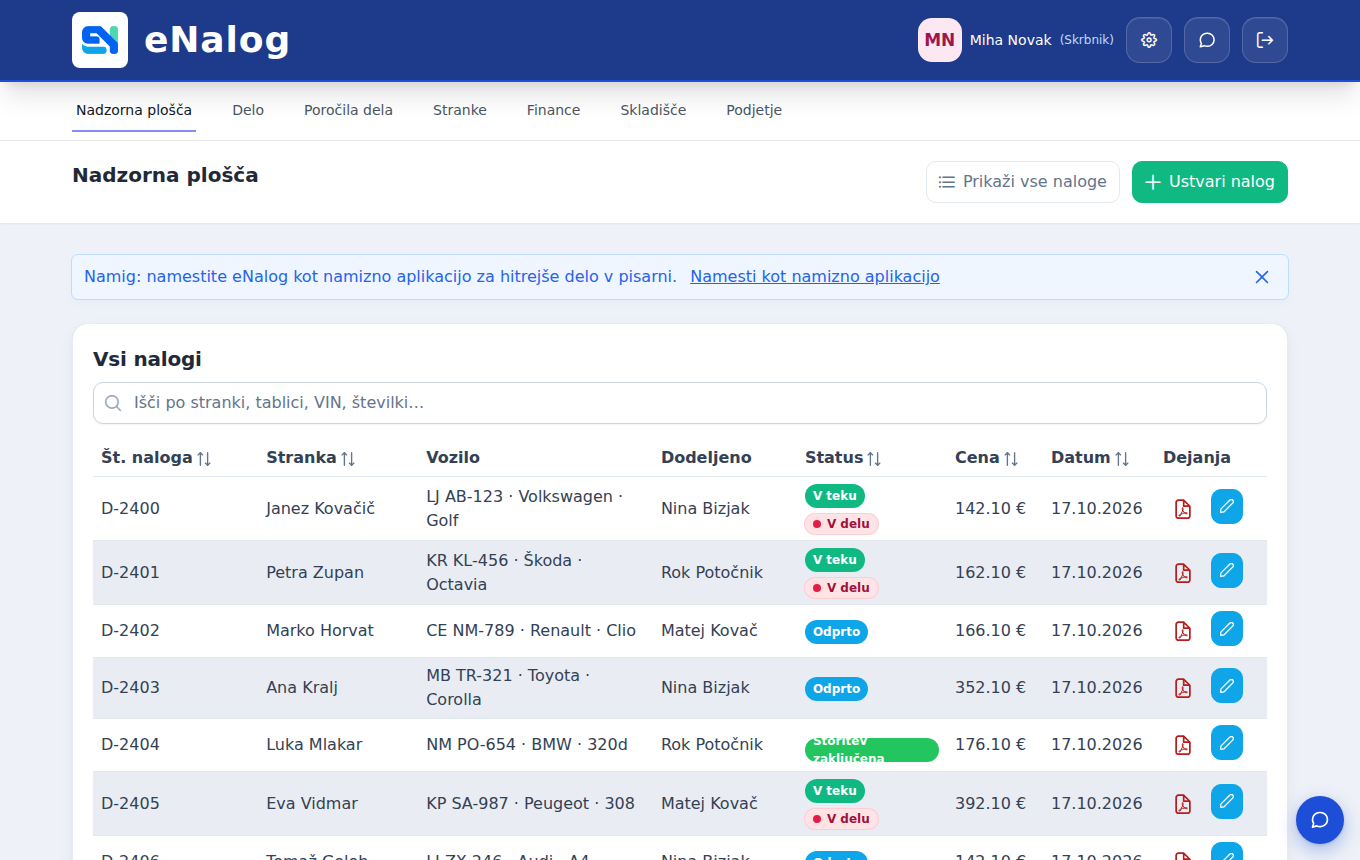
When a customer calls, the office opens a new work order, finds the customer by name or phone and selects the device. If the customer is new, they are added with Add new. The office then assigns the order to a technician and notes what the customer described. The technician has the order on his phone straight away, without any paper.
At the customer’s: everything on the phone
The technician opens the work order on his phone when he arrives:
- 1On the Work time card he clicks Start work. While the clock runs, the order is marked with a red Working label everywhere, so the office knows where he is.
- 2Under Documents he clicks Take a photo and then Photos. He photographs the rating plate with model and serial number, and the fault itself. The photos are attached to the order.
- 3He records the work: ticks services from the list or adds his own item, and adds the spare part from the warehouse or scans its barcode.
- 4If he does not have the part with him, he clicks Find at supplier on the order and checks where to order it.
- 5When he is done, he clicks Stop. If he starts work on another order, the clock on the previous one stops by itself.
If the repair is delayed because a part has to be ordered, the technician sends the customer a short message with SMS to client right from the order. Time he forgot to start can be entered with Add manually.

In the office: no more retyping
The office sees the photos, items and work time on the computer the moment the technician saves them. In Work → Work Orders it searches by number, customer or status, so it knows which orders are open, in progress or completed. The PDF of the work order goes to the customer by e-mail or is printed.
When the work is done and the order is completed, the spare parts used are taken off stock automatically. The office issues the invoice from the work order, as a fiscally compliant invoice or in the accounting program you use. Technicians cannot close an order themselves, so the office checks items and amounts once more first.
If you enter standard times for jobs, for example half an hour for replacing a heating element, Reports shows the hours worked and the efficiency of each technician for the chosen period.
What changed
The work order is written once, at the customer’s. Serial number, warranty and fault photos are on the order, so they are at hand even for a complaint six months later. Work time runs on the order rather than in someone’s memory, and parts leave the stock as soon as the order is completed. In the afternoon the office no longer retypes anything; it just checks and invoices.