










Industries · Machines and machinery
Manufacturing: work orders, stock and working hours in manufacturing
Small-scale manufacturing needs clear work orders, accurate stock and records of hours. eNalog brings it together without a complicated ERP.
What changes
Less searching, phoning and retyping
Who's doing what
Work orders with deadline and responsible worker, with an overview by status.
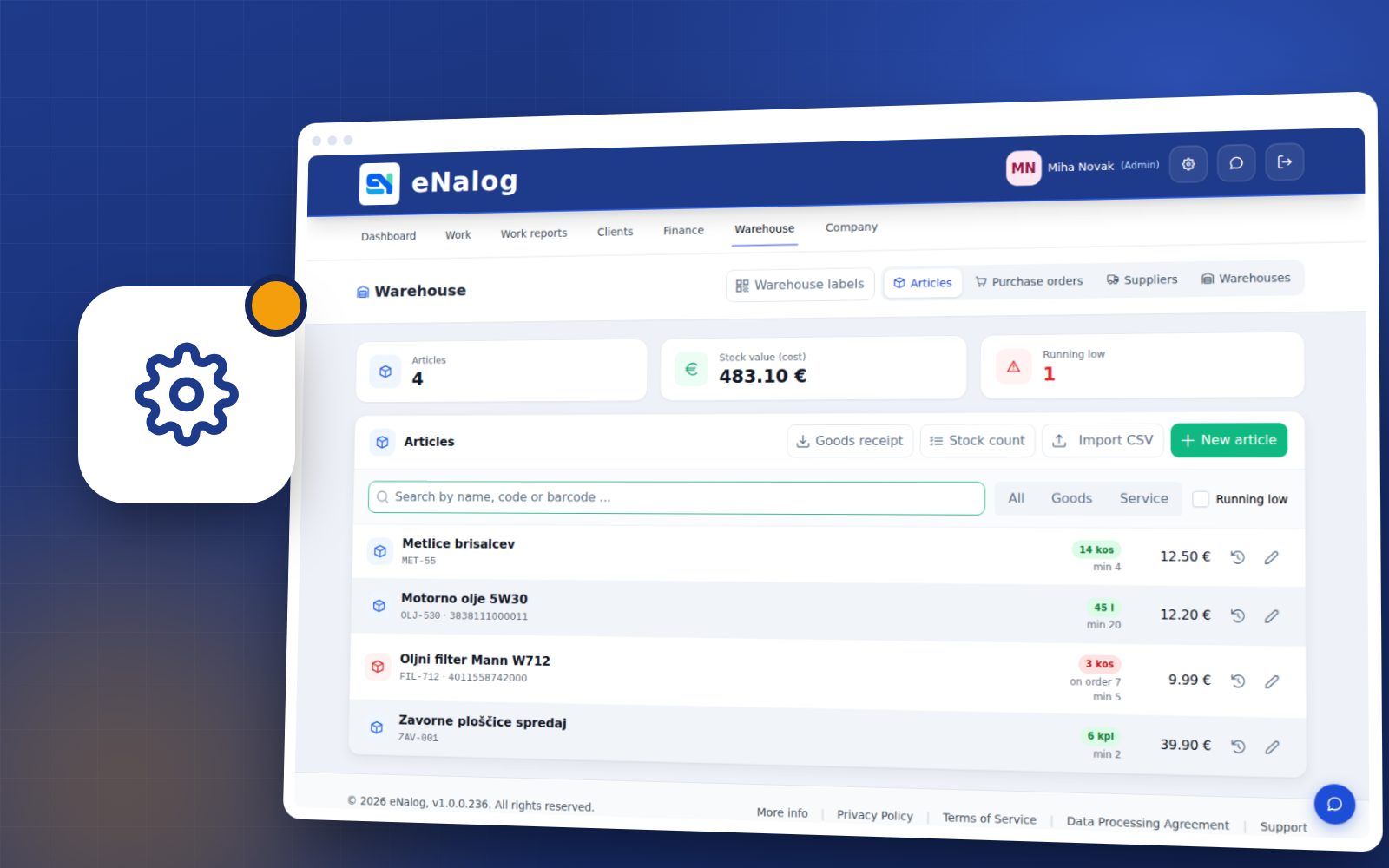
Material stock
Goods receipts, usage and stocktaking, with reorder alerts.
Hours for payroll
Arrivals and departures at the kiosk, with a monthly overview for payroll.
Features for your business
Machines and machinery
Agricultural and construction machinery service, metalworking, machining and manufacturing.
Work order with machine
The customer's machine or equipment with serial number and operating hours, plus its full service history.
Parts warehouse
Stock, goods receipts, usage on work orders and an alert when stock falls below the minimum.
Time by work order
Every worker records time on the work order, and you see actual hours against planned hours.
Arrivals and departures
Working time records at the kiosk, by card or PIN, with no paper timesheets.
Quotes
Send a quote by email, the customer accepts it via a link, and it becomes a work order.
Reports
Revenue, hours by worker, margin on parts and most frequent services.
How it works in practice
Manufacturing
Machine intake
Enter the machine, operating hours and fault description on the work order.
Planning the work
Assign the work order to a technician; parts are reserved from the warehouse.
Carrying out the work
The technician records time and parts used, and adds photos by phone.
Completion
Invoice from the work order – the machine’s service log updates itself.
How work is organised
How you organise your work
Three example businesses of different sizes, step by step: who does what, what you set up once and how a working day runs. Pick the example closest to your business. Each one has two invoicing options: in eNalog or in your accounting program.
Sole trader: does everything alone
Jack runs Example Machinery Service Ltd with no employees. He takes in the customer, does the job and issues the invoice, all from one login.
Who does the work
- Jack: role Admin. Sees and edits everything, including invoices and settings.
- He doesn’t need any other users. His accountant can get the Accountant role, which can only view invoices and the export.
Set up once
- When signing up he picks his line of business; eNalog prepares the work order fields and service items for machinery servicing.
- In Company settings → Service items he adjusts the prices of the jobs he does most often.
- He installs the eNalog app on his phone or opens eNalog in the browser, so the work order is always with him.
- He sets up invoicing (see below, depending on where he issues invoices).
How the work runs
- The customer Kelly Farm phones or books online. Jack opens Create Nalog and picks or adds the customer.
- On the work order he picks the customer’s machine and enters the operating hours (2,150 h). Using the QR code on the work order, he photographs the machine’s rating plate and any damage with his phone; the photos are attached to the work order.
- On the work order he ticks the services from the list, for example a regular service and a new hydraulic filter, and the material used from the warehouse.
- When he starts he clicks Start work, when he finishes Stop. That way he knows how much time the job really took.
- When the job is done, he checks the lines and clicks Close work order.
- He emails the work order PDF to the customer or prints it, then issues the invoice.
If you invoice in eNalog
- On the closed work order he clicks Issue invoice and picks the payment method: cash, card or bank transfer.
- The invoice goes to the customer by email. For bank transfers it stays open until he records the payment in Invoices.
- At the end of the month he sends his accountant the Export for the accountant or gives them the Accountant role.
If you invoice in your accounting program
- He connects his program once in Company settings → Invoices (API key or the Connect button).
- On the closed work order he clicks Issue in … An invoice or draft with the customer and lines is created in the program.
- If the program creates a draft, he confirms it there. The invoice number and PDF come back to the work order in eNalog.
When you work alone, what matters most is having everything in one place: work order, time, material and invoice. Nothing gets copied from a notebook into a program.
Small team: a boss and two workers
At Example Machinery Service Ltd, Mark takes in customers and issues invoices, while Luke and Tom work in the workshop or on site.
Who does the work
- Mark: role Admin. Takes in customers, hands out the work, closes work orders and issues invoices.
- Luke and Tom: role Worker. They see all work orders and edit their own and those assigned to them. They don’t see invoices or payments.
- The workers log in with a 6-digit PIN on the shared Workshop screen (tablet or computer) or on their own phone.
Set up once
- In Company settings → Company users, Mark adds Luke and Tom with the Worker role. Each gets an email with the company code.
- On the workshop tablet or computer he opens the Workshop page and enters the company code. The browser remembers it.
- If they work in gloves, he turns on Larger buttons in Company settings → Features.
- He sets up invoicing (see below).
How the work runs
- In the morning Luke and Tom log in on the Workshop screen with their PIN (or with their phone via the QR code on the wall). Their arrival is recorded in working time.
- Mark takes in the customer Kelly Farm and opens a work order. On the work order he picks the customer’s machine and enters the operating hours (2,150 h). Using the QR code on the work order, he photographs the machine’s rating plate and any damage with his phone; the photos are attached to the work order.
- He assigns the work order to Luke, who sees it on the Workshop screen under Work orders.
- Luke clicks Start work when he begins. When he takes material from the warehouse he adds it to the work order, also by scanning the barcode. He ticks off the services on the work order, for example a regular service and a new hydraulic filter.
- When he finishes, he stops the time and logs out. The work order stays open for the boss; a worker can’t close it.
- Mark checks the lines, time and material and clicks Close work order. The material used is deducted from stock.
If you invoice in eNalog
- On the closed work order Mark clicks Issue invoice and picks the payment method. The invoice has the same lines as the work order.
- The customer pays on the spot (cash or card) or by bank transfer; for transfers the invoice carries a payment QR code where the country supports it.
- In Reports → By worker, Mark sees how many hours each person worked and how fast compared to the standard time.
If you invoice in your accounting program
- Mark connects the program once in Company settings → Invoices.
- On the closed work order he clicks Issue in … The workers don’t see this button.
- The invoice or draft is created in the program, and the number and PDF come back to the work order. The accountant keeps working in their program as before.
The workers don’t waste time at a computer: PIN, Start work, Stop. And the boss always sees what’s in progress and what’s waiting.
Larger business: admin, office and several workers
At Example Machinery Service Ltd, Anna is the owner and admin, Sarah runs the office, and Luke, Tom and Conor do the work.
Who does the work
- Anna: role Admin. Company settings, users, subscription and reports.
- Sarah: role Office. Customer intake, appointments, work orders, invoices, payments, warehouse and the export for the accountant. She can’t change the subscription.
- Luke, Tom and Conor: role Worker. They log in with a PIN, card or phone and work on the work orders assigned to them.
Set up once
- Anna adds the users with their roles and, in Company settings → Working hours schedule, sets working hours, breaks and leave approval.
- She puts a QR code or NFC sticker at the entrance for clocking in and out by phone, and sets up the Workshop screen in the workshop.
- Sarah imports the price list and items into the warehouse and turns on online booking with an SMS reminder the day before the appointment.
- Together they set up invoicing (see below) and who may issue invoices.
How the work runs
- The customer Kelly Farm books online or by phone. Sarah sees the appointment in the calendar; when the customer arrives she opens an Intake order and creates the work order from it.
- On the work order he picks the customer’s machine and enters the operating hours (2,150 h). Using the QR code on the work order, he photographs the machine’s rating plate and any damage with his phone; the photos are attached to the work order.
- Sarah hands out the work: the work order goes to Tom, who is free today. On the Workshop screen everyone can see who is working, on a break or away.
- Tom works with Start work and Stop, adds material and ticks off services, for example a regular service and a new hydraulic filter. For questions he uses Chat, where he can attach a link to the work order.
- When the job is done, Sarah checks the work order and clicks Close work order. She sends the customer the work order PDF by email or an SMS saying the job is done.
- On the Dashboard and in Reports, Anna keeps track of revenue, hours per worker, margin on material and open work orders.
If you invoice in eNalog
- On the closed work order Sarah clicks Issue invoice. For bank transfers the invoice stays open; she records payments in Invoices and sends reminders to late payers.
- She enters or imports supplier invoices in Received invoices and receives the material into the warehouse.
- At the end of the month she sends the accountant the Export for the accountant (issued and received invoices).
If you invoice in your accounting program
- Anna connects the program once in Company settings → Invoices.
- On the closed work order Sarah clicks Issue in … The admin can allow other users to do this with a tick box on the user.
- The invoice or draft is created in the program, where the accounting team confirms and sends it. The number and PDF come back to the work order; payments and bookkeeping stay in the program.
Everyone has their own role: the workers do the work, the office takes in customers and invoices, the admin sees the whole picture. No paper work orders travelling from desk to desk.
What applies in your country?
Whether you can issue invoices in eNalog, and which programs eNalog connects to, depends on the country where your business is registered.
Frequently asked questions
Manufacturing
Yes. Enter the operating hours on the work order, so you can see when the machine was last serviced and at how many hours.
Yes. The advanced warehouse (Premium plan) handles multiple warehouses, transfers between them and stock by location.
Yes. On the work order you choose a machine or a vehicle, depending on what’s in for service.
Try eNalog in your line of business
Free for 14 days, no card required. Choose your industry when you sign up and set up everything else as you go.