










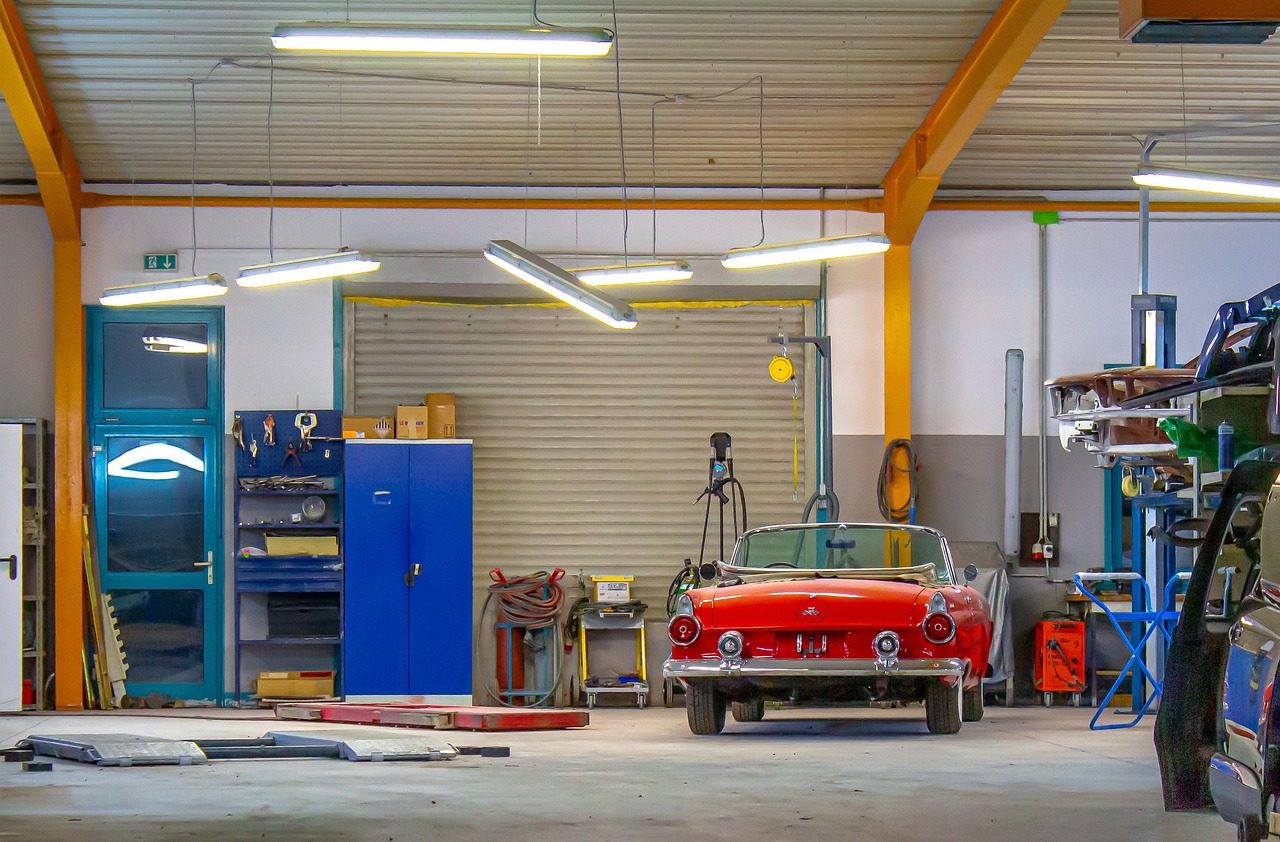
Take a garage with five mechanics and one person at the front desk. Between seven and eight in the morning, customers drop off five or six cars at once. The service advisor writes the plate, the mileage and what the customer wants on a sheet of paper, circles the damage on a car sketch or, in the rush, doesn’t note it at all. In the afternoon someone types everything into the computer. When a customer picking up the car asks whether the scratch on the bumper was there before, nobody knows for sure.
This is an illustrative example of something many workshops deal with. Below is how you handle that kind of check-in in eNalog with the phone the advisor already carries.
What was slowing check-in down
- ✓Everything was written twice: first on paper, then into the computer.
- ✓Plates and VINs were mistyped when copied, so vehicles were not always found in the database and duplicates appeared.
- ✓There was no way to show the condition of the car at drop-off, because there were no photos or they stayed on the advisor’s phone.
- ✓The mileage was missing exactly when it was needed, for example when booking the next service.

A new customer straight from the registration document
When a customer comes in for the first time, the advisor opens Clients → Add new, clicks Photograph or upload a document and takes a picture of the vehicle registration document. Name, address, plate and VIN are filled in automatically; the advisor only checks them and adds a phone number and e-mail. The photo of the document is not stored anywhere, the data is only read from it.
From the VIN, eNalog completes the vehicle details such as engine, fuel and body type. For rare vehicles that no source knows, at least the make is filled in and the advisor adds the model. A customer can have several vehicles, so the family car and the company van stay with the same customer.
Vehicle check-in step by step
For a customer who is already in the database, check-in goes like this:
- 1On the front-desk computer the advisor clicks Create Nalog. To the right of the form is the Phone panel with a QR code.
- 2They scan the QR code with the phone camera. No login is needed on the phone; the code is valid only for this work order and renews itself.
- 3On the phone they tap Plate and photograph the number plate, or VIN and photograph the number under the windscreen. They check what was read and tap Send to the computer.
- 4Under Km reading they enter the odometer reading.
- 5Under Photos they photograph the car from all sides and each damaged spot separately.
- 6On the computer, everything sent appears within seconds in the From the phone box. The vehicle with the same plate or VIN is selected automatically together with its customer, and the mileage goes into its field.
- 7The advisor writes down what the customer wants, assigns the order to a mechanic and saves it with Create Nalog. The photos are attached to the work order.
If a customer books in advance, the advisor can first open an Intake order with the date and time, and the items are added later when the car is in the workshop.

What changed in day-to-day work
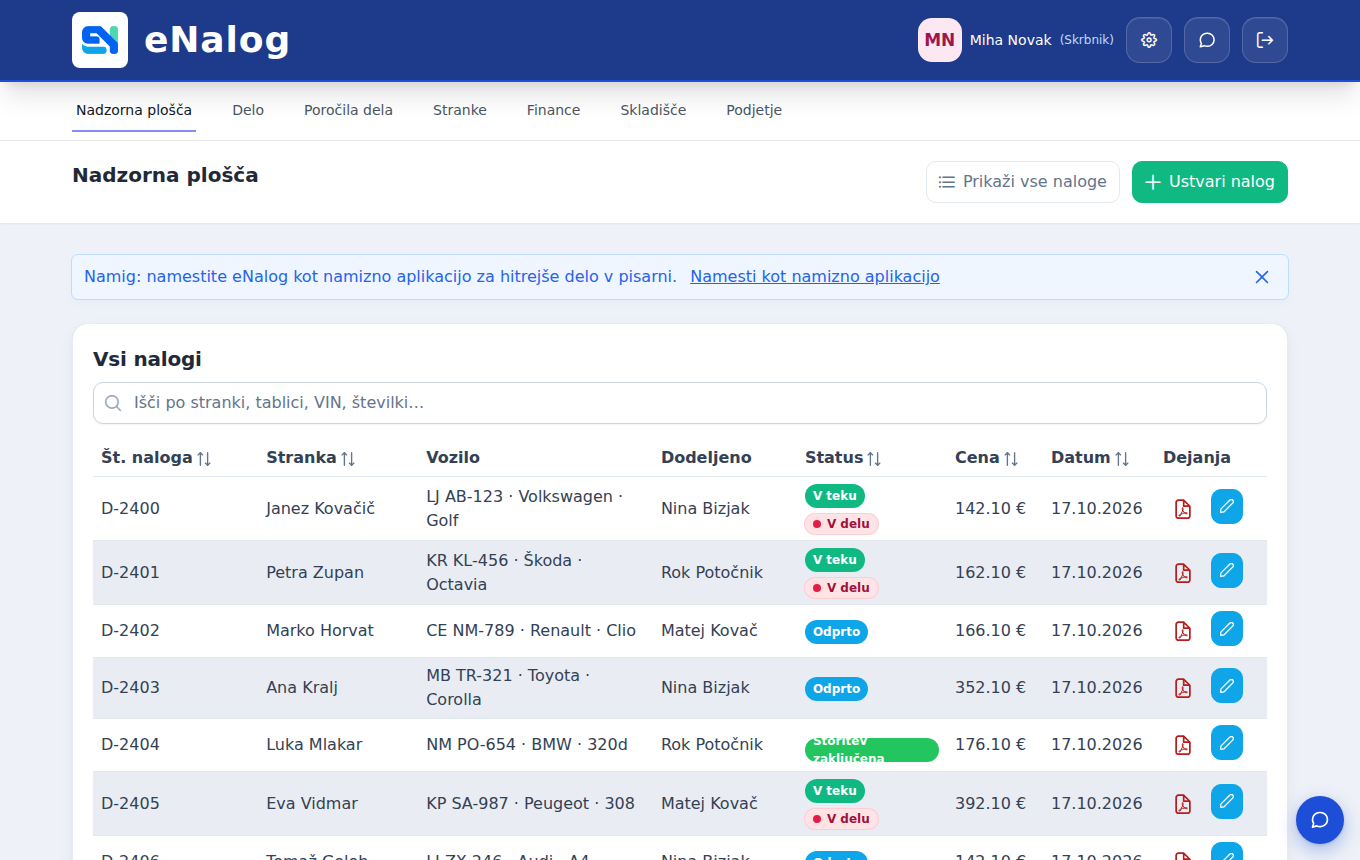
Check-in is no longer written twice. Whatever the advisor photographs and enters next to the car is immediately on the work order, which the mechanic sees on their dashboard. Photos of the condition at drop-off are attached to the order, so the conversation about the scratch on the bumper is short: open the order and look at the photos.
Because a new work order is saved as a draft while it is being filled in, it doesn’t matter if the advisor is interrupted by a phone call or a new customer at the door. The draft is kept for up to three days and the advisor picks it up from the order list with Continue. Meanwhile the phone can keep adding to it.
The mileage is recorded on every work order, and all completed services are collected in the vehicle’s Digital service book. You can print it for the customer or send it as a link, which also helps when they sell the car.
When something needs to be added during the job
The QR panel is also on an open work order, on the right above the documents. A mechanic who notices a worn part during the job photographs it with a phone and the photo is saved to the order right away. If the vehicle already has a different VIN or plate on record, eNalog shows this with a Use the phone’s button, so existing data is never replaced by mistake.
If you open the work order on the phone itself, there is no QR code. Instead there is a Take a photo button next to the customer or under Documents, with the same options: VIN, plate and photos. That way a mechanic can check a car in alone when the advisor isn’t there.
When the job is done, the office prints the work order from the PDF preview or e-mails it to the customer. If the customer needs a replacement car during the repair, you issue it under Work → Courtesy cars, with the customer signing the loan terms on the screen.
In short
At vehicle check-in, the phone is the fastest tool: it reads the plate or VIN, records the mileage and the condition of the car, and the data shows up on the work order on the computer. The workshop has a record of the state every car arrived in, without slips of paper and without retyping at the end of the day.